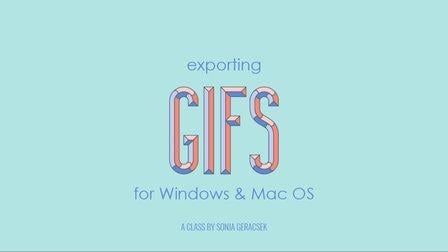
Exporting GIFs with Adobe Media Encoder - For Windows and Mac OS (Skillshare)

Offered by Skillshare,
Exporting GIFs with Adobe Media Encoder - For Windows and Mac OS (Skillshare)

Learn how to best export your animation as a GIF, whether you are on Windows or Mac OS, using Adobe After Effects and Adobe Media Encoder. There are many ways to create a GIF and even more limitations when it comes to posting it on social media. In this class, I'll go through the process of creating encoding presets, you can use to render out your GIF, what to look out for regarding duration, social media platform and GIF format limitations!

This Skillshare class will enhance your understanding of the Animated GIF Format, social media requirements and frame rates sizes. I will cover techniques from setting up your work area, to exporting your animation to different formats. You will learn some animation basics, using frame rates to your advantage, file and naming structures – and how this will improve your animations.

What You'll Learn

Preparation before Export

  • I will talk you through the preparation of your scene for export
  • I will touch on the Animation Basics: Overlapping Action & Follow-Through
  • You will learn how layer sequencing can impact on your duration
  • I will go through how frame rates and their fractions impact on a looping scene

Limitations & Requirements

  • You will learn about some of the limitations of the GIF format
  • I will share my experience with social media platforms such as Instagram, Twitter, Dribbble and - - --- Pinterest, as well as best practices

Audio

  • I'll give you some tips for using audio in a looped animation
  • I will share copyright free resources and talk about attribution

Exporting & Encoding Presets

  • I'll show you the simple process of getting your animation social media ready and how to render out a GIF
  • I will show you a quick and easy way to export your GIF for Mac OS
  • We will create presets for Instagram, Twitter, Dribbble and Pinterest
  • I'll speak about source scaling and how to crop your animation to a smaller size before exporting
  • I will touch on best practices for folder structure and file naming

What You'll Do
You will export your looped animation that you can share online! You will use Adobe After Effects and Adobe Media Encoder to export your file.

Why You Should Watch
This class is a quick and easy guide for exporting GIFs and understanding social media best practices. You will get to grips with frame rates, resolution, and file limitations.
Having workflow basics in mind, we will be able to focus on animation basics and get your skills to the next level.

Project Description: create a Looping GIF

Assignment: Export your animation with your various preset formats and share them with the class!

Deliverabe
Upload a GIF of your animation. Your animation should follow these rules:

  • Make it short, max. 6 econds
  • Make it simple, not too many colors or objects
  • Make it small, compress your export to a small frame rate with a small resolution without losing quality
Go to Class
MOOC List is learner-supported. When you buy through links on our site, we may earn an affiliate commission.

Related Courses

Introduction to 3D Character Animation: #2 - Setting Up (Skillshare) Skillshare
Skillshare

Introduction to 3D Character Animation: #2 - Setting Up (Skillshare)

In this class, you will set up your environment so that you can start doing some character animation. You will also learn how we will approach animating realistic and believable 3D characters. You don't need to have any experience with any 3D software. However, it is recommended that you use the open-source 3D software Blender as that is what we will be using in this class. If you prefer your own 3D software, you will still be able to follow along and apply the principles in your preferred 3D software.

Self Paced
Self-Paced
Introduction to Hand-Drawn Animation With Animatic (Skillshare) Skillshare
Skillshare

Introduction to Hand-Drawn Animation With Animatic (Skillshare)

Learn how to get started creating animations by hand using the free Animatic app for iOS and Android devices in this free class. I'll get you up and running with Animatic and walk you through my entire process for animating by hand. We'll even touch on some basic animation practices like timing, spacing and squash & stretch. By the end of the class you'll have your very own hand-drawn animation!

Self Paced
Self-Paced
Modeling, Texturing and Lighting a Pineapple in Maya (Skillshare) Skillshare
Skillshare

Modeling, Texturing and Lighting a Pineapple in Maya (Skillshare)

Have you ever model a 3d Pineapple. If yes, Was your model looking unrealistic? If yes, then watch this class. Modeling, Texturing & Lighting a Pineapple in Maya, this class has lot of information which will help you model complex shapes in Maya. If you are a beginner Maya student then you should watch this class till end to learn valuable Technics in Maya, which you can use in your daily life or in professional life.

Self Paced
Self-Paced
3D Modeling: Character Modeling Challenge (Skillshare) Skillshare
Skillshare

3D Modeling: Character Modeling Challenge (Skillshare)

Are you tired of being a newbie with all the 3D modeling and animation you're learning? Do you want to learn and level up past being a novice? If that's you then this challenge is for you. The key to becoming great at anything is practice and progress, and that's what this challenge is all about. It doesn't matter when you start. Just get started! I'll be watching the projects closely as you create your characters each day.

Self Paced
Self-Paced
Speed Up Your Workflow With Motion2 From Mt. Mograph (Skillshare) Skillshare
Skillshare

Speed Up Your Workflow With Motion2 From Mt. Mograph (Skillshare)

In this quick course I’ll show you just a handful of the many incredibly useful tools in Mt. Mograph’s Motion2 plugin. There are so many uses for this plugin, and each one of them on their own is worth the full price. I’ll show you how I use Motion2 regularly to speed up my workflow and keep things moving in After Effects.

Self Paced
Self-Paced
How to Animate a Sketch UI using Principle (Skillshare) Skillshare
Skillshare

How to Animate a Sketch UI using Principle (Skillshare)

This class will show you how to add motion to a User Interface that has been designed in Sketch using Prototype. It’s perfect for any designer who creates their UI using Sketch and wants to add motion and interaction to their designs. No prior experience of Principle is required to take the class as I’ll explain how to use it. The only thing you need to do before you take this is to download the Principle app on your machine.

Self Paced
Self-Paced
Create Smooth Lip Syncs in After Effects (Skillshare) Skillshare
Skillshare

Create Smooth Lip Syncs in After Effects (Skillshare)

This awesome technique will enable you to create smooth lip syncs in Adobe After Effects. The technique is especially suitable for slow talking characters, but works great at other speeds as well. It's a fun and short class that's straight to the point. If you really want to spice up you character animations in Adobe After Effects, then this class is definitely for you! What are you waiting for? Let's get those lips moving! I'm sure your characters have something fun to say :-)

Self Paced
Self-Paced
Writing Explainer Animations In After Effects (Skillshare) Skillshare
Skillshare

Writing Explainer Animations In After Effects (Skillshare)

Learn how to uniformly execute an explainer animation from scratch. If you want to learn how motion explainer animation is created from scratch. You are on the right place. Even if you are beginner or intermediate, you'll get extremely useful tips and tricks. The process that is shared makes your animation work flow much more faster than ever.

Self Paced
Self-Paced