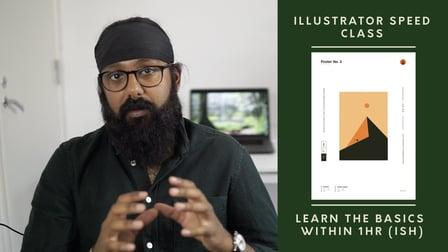
Adobe Illustrator Speed Class - Learn the basics in an 1hr (ish) - A collection of short tutorials. In this class, you'll learn everything you need to get started with Adobe Illustrator through clear explanations of tools and example use cases via short videos, between 1 and 5 minutes long which have been designed to be a reference point if you ever forget how to use a tool (which I have done on many occasions!).
If you enrolled in the class we'll run through the tools and I’ll refer to the posters I have created, what I would like us to do is for you to create a poster which exercises the tools within Adobe Illustrator, see the class project for more details.
The class has been categorised in the following order:
Setup
We will take a look at:
- What you need to consider when opening the software
- Your workspace in the software, so basically how to find the tools you need to create art
- A short explanation of artboards, how they work and how to customise them
- Your selection tools which you will use loads, so is really important to get familiar with
- Scrolling and zooming so you can make sure you can navigate through your document at speed
Organisation
We will take a look at:
- Layers, so how to understand what is on top of what and how to move artwork in front or behind other paths in order to create depth
- Grouping paths, which is a great way to organise artwork and also makes it easy to align
- Locking paths which allows you to make sure that what you are doing is not affecting artwork that you don’t want touched
- Guides, so you can ensure you are clear on boundaries to create pixel perfect artwork, changing paths into guides
- Alignment, so you can tidy up work by either aligning to the artboard or to your selection and we will cover off distribution too so you can equally space paths
Paths
We will take a look at:
- The shape tools, fundamental to learn as it forms the core of the majority of work within Adobe Illustrator
- The pen tool, so you can create custom paths and artwork, difficult one to master but feels great once you do!
- Line tool, how to create them and customise them
- Pencil Tool, couple of use cases and how to use it, great for more custom free form art
- Blend tool, powerful tool, can create a blend between 2 paths to create awesome art
Typography
We will take a look at:
- Type tools, including, standard type tool, how to create paragraphs, vertical type tool and fill shape with text
- Type on a path, so the tool used to create types on paths, so for example creating icons or logos with text on circles
- Typography appearance, how to change properties of font, including colour, stroke, kern and more
Refinement
We will look at:
- Clipping mask, which is a great way to tidy up artwork by using a shape like a pasta cutter to delete everything outside the shape!
- Colour tool and swatches, couple of ways to use it including covering off swatches
- Pathfinder and shipbuilder, a super powerful tool used to create new shapes using 2 or more shapes by either merging or deleting paths
Finishing
We will look at:
- Saving and exporting, important to understand file types and the ability to export files as images
If you're a complete beginner to Adobe Illustrator, we'll ease you in with the basic fundamentals before getting fancy with other tips and tricks which we can cover off in more detail in future classes. And if you're an intermediate or an advanced user, hopefully you'll find something here that's useful.
Hope you enjoy the class! If you have any questions, please let me know and I would really appreciate if you could leave me a review if you get a chance!
If you would like to take part in the project, I would recommend following the videos through all the way to the end, review the posters I have created which can be downloaded (right) and create your own poster in the same style, remember you can refer back to the videos if you forget how to use the tools.
Some things to keep in mind:
- You can just copy my poster but what I would recommend is that you use your own fonts and text, use your own colour choices and create your own graphics but use mine as a foundation to make it a little easier, for example, redraw the desert scene but adjust it
- If you want to just practice, try to copy and trace the graphics in my posters! :)
- The intention is for you to practice using the tools so have a play around but keep the structure of your poster similar in the first instance, so:
. Text in the top left
. Icon/Logo in the top right
. Text and graphic on the left
. Text and graphic on the right
. Text at the bottom
. Graphic or artwork in the middle
- A little challenge for you is to figure out what tools were used to create all 3 of the logos in the top right-hand corner, post your thoughts in the discussion board
- Your final poster doesn’t have to be perfect so give it a go but if you are stuck you can get in touch with me and I’ll see if I can help!
Whether you've copied my poster but changed text, are excited about sharing your take on the poster or have a complete poster which showcases use of all of the tools to show us, we're excited to see what you've made. Upload any part of your project to the gallery!